 Dynamic Mosaic -
Help Dynamic Mosaic -
Help |
Dynamic Mosaic -
Help
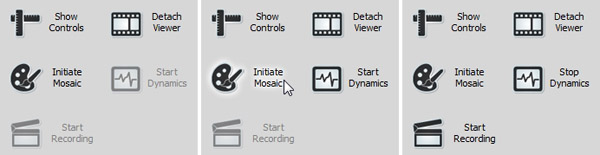
Five action buttons
There
are 5 actions buttons. Left picture: when the application starts, right picture:
after the
initial mosaic has been created.
When
buttons are greyed out it means that
thes
button are temporarily disabled at start. This is to avoid that by accident
a function is requested while that function has not been
initialized by
other actions. The buttons have the following
functions:
Each of
these controls are explained in a
dedicated
chapter
.
Show
controls: the mosaic settings
windows is shows. This is a floating window which can be put
anywhere on the screen to quickly assess the mosaic settings from anywhere in the
application.
Detach
Viewer: the viewer (monitor)
window is attached to the application, but can be detached, and placed in a
second monitor. This way the mosaic output screen can be separated from the
admin screen. The monitor can be detached
again the pressing the same button (now showing 'Attach
Viewer') and place the mosaic viewer window back in the application
itself.
Initiate mosaic: by pressing the
initial mosaic is created. After installation a test library of pictures (1500
pictures) is available and this library is used at first. The creation of the
initial mosaic takes just a few seconds, and is immediately shown in the
viewer. The test library has pictures of very low resolution
, and the initial mosaic seems to look very nice
in the small viewer, but on a large screen pixels are clearly seen.
It is highly recommended to replace the picture library by higher resolution
pictures!
Start Dynamics and Stop
Dynamics: by pressing this button the dynamic mode is activated and the mosaic
pictures fly in or out the current mosaic. When pressed the test change text to
indicate whet happens when the button is pressed again. The dynamics will not
immediately stop because it will first finish its cycle or flying in and
pausing. At the pause moment the dynamics will really
stop.
Start
or Stop Recording: this is a toggle button to start or stop recording
of the current dynamic mosaic viewer. Every dynamic is recorded, but not the
commercial interludes. These are omitted from the recording. In case you want
to make sure there is not 'blank' recording you shoudl first disable the
commercials before you start arecording. NOTE: Recording may heavily
require CPU power, so in case you are recording while creating a HiRes
dynamics mosaic, the system might become very hot, and the animations (flying,
shuffle) can become jerky.